Tạo ứng dụng Google Chat loại HTTP

Trang này giải thích cách tạo ứng dụng Chat HTTP. Có nhiều cách để triển khai cấu trúc này. Trên Google Cloud, bạn có thể sử dụng Cloud Run và App Engine. Trong hướng dẫn bắt đầu nhanh này, bạn sẽ viết và triển khai một hàm Cloud Run mà ứng dụng Chat dùng để phản hồi tin nhắn của người dùng.

Với cấu trúc này, bạn sẽ định cấu hình Chat để tích hợp với Google Cloud hoặc một máy chủ tại chỗ bằng HTTP, như minh hoạ trong sơ đồ sau:
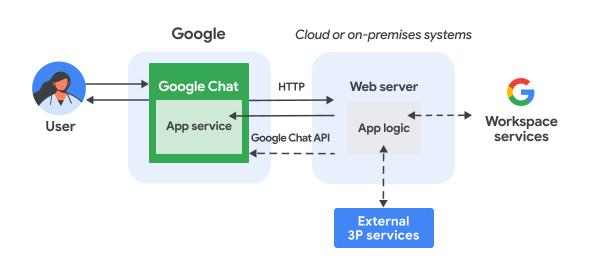
Cấu trúc của một ứng dụng Chat sử dụng dịch vụ web trong máy chủ tại chỗ.

Trong sơ đồ trước đó, một người dùng tương tác với ứng dụng Chat HTTP sẽ có luồng thông tin như sau:

  1. Người dùng gửi tin nhắn trong Chat đến một ứng dụng Chat, thông qua tin nhắn trực tiếp hoặc trong một không gian Chat.
  2. Một yêu cầu HTTP được gửi đến máy chủ web. Máy chủ này là một hệ thống trên đám mây hoặc tại chỗ có chứa logic của ứng dụng Chat.
  3. Tuỳ chọn là logic của ứng dụng Chat có thể tích hợp với các dịch vụ của Google Workspace (như Lịch và Trang tính), các dịch vụ khác của Google (như Maps, YouTube và Vertex AI) hoặc các dịch vụ web khác (như hệ thống quản lý dự án hoặc công cụ tạo phiếu yêu cầu hỗ trợ).
  4. Máy chủ web gửi phản hồi HTTP trở lại dịch vụ ứng dụng Chat trong Chat.
  5. Phản hồi được gửi đến người dùng.
  6. Tuỳ chọn là ứng dụng Chat có thể gọi Chat API để đăng tin nhắn không đồng bộ hoặc thực hiện các thao tác khác.

Cấu trúc này giúp bạn linh hoạt sử dụng các thư viện và thành phần hiện có trong hệ thống vì các ứng dụng Chat này có thể được thiết kế bằng nhiều ngôn ngữ lập trình.

Mục tiêu

  • Thiết lập môi trường.
  • Tạo và triển khai một hàm Cloud Run.
  • Xuất bản ứng dụng lên Chat.
  • Kiểm thử ứng dụng.

Điều kiện tiên quyết

Thiết lập môi trường

Trước khi sử dụng API của Google, bạn cần bật các API đó trong một dự án trên Google Cloud. Bạn có thể bật một hoặc nhiều API trong một dự án trên Google Cloud.
  • Trong Google API Console, hãy bật Google Chat API, Cloud Build API, Cloud Functions API, Cloud Pub/Sub API, Cloud Logging API, Artifact Registry API và Cloud Run API.

    Bật các API

Tạo và triển khai một hàm Cloud Run

Tạo và triển khai một hàm Cloud Run tạo thẻ Chat có tên hiển thị và hình đại diện của người gửi. Khi nhận được tin nhắn, ứng dụng Chat sẽ chạy hàm và phản hồi bằng thẻ.

Để tạo và triển khai hàm cho ứng dụng Chat, hãy hoàn tất các bước sau:

Node.js

  1. Trong Google API Console, hãy chuyển đến trang Cloud Run:

    Chuyển đến Cloud Run

    Đảm bảo bạn đã chọn dự án cho ứng dụng Chat.

  2. Nhấp vào Write a function (Viết hàm).

  3. Trên trang Create service (Tạo dịch vụ), hãy thiết lập hàm:

    1. Trong trường Service name (Tên dịch vụ), hãy nhập quickstartchatapp.
    2. Trong danh sách Region (Khu vực), hãy chọn một khu vực.
    3. Trong danh sách Runtime (Thời gian chạy), hãy chọn phiên bản Node.js mới nhất.
    4. Trong phần Authentication (Xác thực), hãy chọn Require authentication (Yêu cầu xác thực).
    5. Nhấp vào Create (Tạo) rồi đợi Cloud Run tạo dịch vụ. Bảng điều khiển sẽ chuyển hướng bạn đến thẻ Source (Nguồn).
  4. Trong thẻ Source (Nguồn):

    1. Trong Entry point (Điểm truy cập), hãy xoá văn bản mặc định rồi nhập avatarApp.
    2. Thay thế nội dung của index.js bằng mã sau:

      node/avatar-app/index.js
      const functions = require('@google-cloud/functions-framework');
      
      // Command IDs (configure these in Google Chat API)
      const ABOUT_COMMAND_ID = 1; // ID for the "/about" slash command
      const HELP_COMMAND_ID = 2; // ID for the "Help" quick command
      
      /**
       * Google Cloud Function that handles HTTP requests from Google Chat.
       *
       * @param {Object} req - The HTTP request object sent from Google Chat.
       * @param {Object} res - The HTTP response object.
       */
      functions.http('avatarApp', (req, res) => {
        const event = req.body;
      
        if (event.appCommandMetadata) {
          handleAppCommands(event, res);
        } else {
          handleRegularMessage(event, res);
        }
      });
      
      /**
       * Handles slash and quick commands.
       *
       * @param {Object} event - The Google Chat event.
       * @param {Object} res - The HTTP response object.
       */
      function handleAppCommands(event, res) {
        const {appCommandId, appCommandType} = event.appCommandMetadata;
      
        switch (appCommandId) {
          case ABOUT_COMMAND_ID:
            return res.send({
              privateMessageViewer: event.user,
              text: 'The Avatar app replies to Google Chat messages.'
            });
          case HELP_COMMAND_ID:
            return res.send({
              privateMessageViewer: event.user,
              text: 'The Avatar app replies to Google Chat messages.'
            });
        }
      }
      
      /**
       * Handles regular messages (not commands).
       *
       * @param {Object} event - The Google Chat event.
       * @param {Object} res - The HTTP response object.
       */
      function handleRegularMessage(event, res) {
        const messageData = createMessage(event.user);
        res.send(messageData);
      }
      
      /**
       * Creates a card message with the user's avatar.
       *
       * @param {Object} user - The user who sent the message.
       * @param {string} user.displayName - The user's display name.
       * @param {string} user.avatarUrl - The URL of the user's avatar.
       * @return {Object} - The card message object.
       */
      function createMessage({displayName, avatarUrl}) {
        return {
          text: 'Here\'s your avatar',
          cardsV2: [{
            cardId: 'avatarCard',
            card: {
              name: 'Avatar Card',
              header: {
                title: `Hello ${displayName}!`,
              },
              sections: [{
                widgets: [
                  {textParagraph: {text: 'Your avatar picture:'}},
                  {image: {imageUrl: avatarUrl}},
                ],
              }],
            },
          }],
        };
      }

    3. Nhấp vào Save and redeploy (Lưu và triển khai lại).

Python

  1. Trong Google API Console, hãy chuyển đến trang Cloud Run:

    Chuyển đến Cloud Run

    Đảm bảo bạn đã chọn dự án cho ứng dụng Chat.

  2. Nhấp vào Write a function (Viết hàm).

  3. Trên trang Create service (Tạo dịch vụ), hãy thiết lập hàm:

    1. Trong trường Service name (Tên dịch vụ), hãy nhập quickstartchatapp.
    2. Trong danh sách Region (Khu vực), hãy chọn một khu vực.
    3. Trong danh sách Runtime (Thời gian chạy), hãy chọn phiên bản Python mới nhất.
    4. Trong phần Authentication (Xác thực), hãy chọn Require authentication (Yêu cầu xác thực).
    5. Nhấp vào Create (Tạo) rồi đợi Cloud Run tạo dịch vụ. Bảng điều khiển sẽ chuyển hướng bạn đến thẻ Source (Nguồn).
  4. Trong thẻ Source (Nguồn):

    1. Trong Entry point (Điểm truy cập), hãy xoá văn bản mặc định rồi nhập avatar_app.
    2. Thay thế nội dung của main.py bằng mã sau:

      python/avatar-app/main.py
      from typing import Any, Mapping
      
      import flask
      import functions_framework
      
      # Command IDs (configure these in Google Chat API)
      ABOUT_COMMAND_ID = 1  # ID for the "/about" slash command
      HELP_COMMAND_ID = 2  # ID for the "Help" quick command
      
      
      @functions_framework.http
      def avatar_app(req: flask.Request) -> Mapping[str, Any]:
          """Google Cloud Function that handles HTTP requests from Google Chat.
      
          Args:
              flask.Request: the request
      
          Returns:
              Mapping[str, Any]: the response
          """
          event = req.get_json(silent=True)
      
          if event and "appCommandMetadata" in event:
              return handle_app_commands(event)
          else:
              return handle_regular_message(event)
      
      
      def handle_app_commands(event: Mapping[str, Any]) -> Mapping[str, Any]:
          """Handles slash and quick commands.
      
          Args:
              Mapping[str, Any] event: The Google Chat event.
      
          Returns:
              Mapping[str, Any]: the response
          """
          app_command_id = event["appCommandMetadata"]["appCommandId"]
      
          if app_command_id == ABOUT_COMMAND_ID:
              return {
                  "privateMessageViewer": event["user"],
                  "text": "The Avatar app replies to Google Chat messages.",
              }
          elif app_command_id == HELP_COMMAND_ID:
              return {
                  "privateMessageViewer": event["user"],
                  "text": "The Avatar app replies to Google Chat messages.",
              }
          return {}


      def handle_regular_message(event: Mapping[str, Any]) -> Mapping[str, Any]:
          """Handles regular messages (not commands).
      
          Args:
              Mapping[str, Any] event: The Google Chat event.
      
          Returns:
              Mapping[str, Any]: the response
          """
      
          if not event or "user" not in event:
              return "Invalid request."
      
          message_data = create_message(event["user"])
          return message_data
      
      
      def create_message(user: Mapping[str, Any]) -> Mapping[str, Any]:
          """Creates a card message with the user's avatar.
      
          Args:
              Mapping[str, Any] user: The user who sent the message.
      
          Returns:
              Mapping[str, Any]: a card with the user's avatar.
          """
          display_name = user.get("displayName", "")
          avatar_url = user.get("avatarUrl", "")
      
          return {
              "text": "Here's your avatar",
              "cardsV2": [
                  {
                      "cardId": "avatarCard",
                      "card": {
                          "name": "Avatar Card",
                          "header": {"title": f"Hello {display_name}!"},
                          "sections": [
                              {
                                  "widgets": [
                                      {"textParagraph": {"text": "Your avatar picture:"}},
                                      {"image": {"imageUrl": avatar_url}},
                                  ]
                              }
                          ],
                      },
                  }
              ],
          }

    3. Nhấp vào Save and redeploy (Lưu và triển khai lại).

Java

  1. Trong Google API Console, hãy chuyển đến trang Cloud Run:

    Chuyển đến Cloud Run

    Đảm bảo bạn đã chọn dự án cho ứng dụng Chat.

  2. Nhấp vào Write a function (Viết hàm).

  3. Trên trang Create service (Tạo dịch vụ), hãy thiết lập hàm:

    1. Trong trường Service name (Tên dịch vụ), hãy nhập quickstartchatapp.
    2. Trong danh sách Region (Khu vực), hãy chọn một khu vực.
    3. Trong danh sách Runtime (Thời gian chạy), hãy chọn phiên bản Java mới nhất.
    4. Trong phần Authentication (Xác thực), hãy chọn Require authentication (Yêu cầu xác thực).
    5. Nhấp vào Create (Tạo) rồi đợi Cloud Run tạo dịch vụ. Bảng điều khiển sẽ chuyển hướng bạn đến thẻ Source (Nguồn).
  4. Trong thẻ Source (Nguồn):

    1. Trong Entry point (Điểm truy cập), hãy xoá văn bản mặc định rồi nhập App.
    2. Đổi tên src/main/java/com/example/Example.java thành src/main/java/AvatarApp.java.
    3. Thay thế nội dung của AvatarApp.java bằng mã sau:

      java/avatar-app/src/main/java/AvatarApp.java
      import com.google.api.services.chat.v1.model.CardWithId;
      import com.google.api.services.chat.v1.model.GoogleAppsCardV1Card;
      import com.google.api.services.chat.v1.model.GoogleAppsCardV1CardHeader;
      import com.google.api.services.chat.v1.model.GoogleAppsCardV1Image;
      import com.google.api.services.chat.v1.model.GoogleAppsCardV1Section;
      import com.google.api.services.chat.v1.model.GoogleAppsCardV1TextParagraph;
      import com.google.api.services.chat.v1.model.GoogleAppsCardV1Widget;
      import com.google.api.services.chat.v1.model.Message;
      import com.google.api.services.chat.v1.model.User;
      import com.google.cloud.functions.HttpFunction;
      import com.google.cloud.functions.HttpRequest;
      import com.google.cloud.functions.HttpResponse;
      import com.google.gson.Gson;
      import com.google.gson.JsonObject;
      import java.util.List;
      
      public class AvatarApp implements HttpFunction {
        private static final Gson gson = new Gson();
      
        // Command IDs (configure these in Google Chat API)
        private static final int ABOUT_COMMAND_ID = 1; // ID for the "/about" slash command
        private static final int HELP_COMMAND_ID = 2; // ID for the "Help" quick command
      
        @Override
        public void service(HttpRequest request, HttpResponse response) throws Exception {
          JsonObject event = gson.fromJson(request.getReader(), JsonObject.class);
      
          if (event.has("appCommandMetadata")) {
            handleAppCommands(event, response);
          } else {
            handleRegularMessage(event, response);
          }
        }
      
        /**
         * Handles slash and quick commands.
         *
         * @param event    The Google Chat event.
         * @param response The HTTP response object.
         */
        private void handleAppCommands(JsonObject event, HttpResponse response) throws Exception {
          int appCommandId = event.getAsJsonObject("appCommandMetadata").get("appCommandId").getAsInt();
      
          switch (appCommandId) {
            case ABOUT_COMMAND_ID:
              Message aboutMessage = new Message();
              aboutMessage.setText("The Avatar app replies to Google Chat messages.");
              aboutMessage.setPrivateMessageViewer(new User()
                  .setName(event.getAsJsonObject("user").get("name").getAsString()));
              response.getWriter().write(gson.toJson(aboutMessage));
              return;
            case HELP_COMMAND_ID:
              Message helpMessage = new Message();
              helpMessage.setText("The Avatar app replies to Google Chat messages.");
              helpMessage.setPrivateMessageViewer(new User()
                  .setName(event.getAsJsonObject("user").get("name").getAsString()));
              response.getWriter().write(gson.toJson(helpMessage));
              return;
          }
        }
      
        /**
         * Handles regular messages (not commands).
         *
         * @param event    The Google Chat event.
         * @param response The HTTP response object.
         */
        private void handleRegularMessage(JsonObject event, HttpResponse response) throws Exception {
      
          if (!event.has("user")) {
            response.getWriter().write("Invalid request.");
            return;
          }
      
          JsonObject user = event.getAsJsonObject("user");
          String displayName = user.has("displayName") ? user.get("displayName").getAsString() : "";
          String avatarUrl = user.has("avatarUrl") ? user.get("avatarUrl").getAsString() : "";
          Message message = createMessage(displayName, avatarUrl);
          response.getWriter().write(gson.toJson(message));
        }
      
        /**
         * Creates a card message with the user's avatar.
         *
         * @param displayName The user's display name.
         * @param avatarUrl   The URL of the user's avatar.
         * @return The card message object.
         */
        private Message createMessage(String displayName, String avatarUrl) {
          return new Message()
              .setText("Here's your avatar")
              .setCardsV2(List.of(new CardWithId()
                  .setCardId("avatarCard")
                  .setCard(new GoogleAppsCardV1Card()
                      .setName("Avatar Card")
                      .setHeader(new GoogleAppsCardV1CardHeader()
                          .setTitle(String.format("Hello %s!", displayName)))
                      .setSections(List.of(new GoogleAppsCardV1Section().setWidgets(List.of(
                          new GoogleAppsCardV1Widget()
                              .setTextParagraph(new GoogleAppsCardV1TextParagraph()
                                  .setText("Your avatar picture:")),
                          new GoogleAppsCardV1Widget()
                              .setImage(new GoogleAppsCardV1Image().setImageUrl(avatarUrl)))))))));
        }
      }

    4. Thay thế nội dung của pom.xml bằng mã sau:

      java/avatar-app/pom.xml
      <project xmlns="http://maven.apache.org/POM/4.0.0"
        xmlns:xsi="http://www.w3.org/2001/XMLSchema-instance"
        xsi:schemaLocation="http://maven.apache.org/POM/4.0.0 http://maven.apache.org/maven-v4_0_0.xsd">
        <modelVersion>4.0.0</modelVersion>
      
        <groupId>gcfv2</groupId>
        <artifactId>avatar-app</artifactId>
        <version>0.0.1</version>
        <name>Avatar App</name>
      
        <properties>
          <maven.compiler.release>21</maven.compiler.release>
        </properties>
      
        <dependencies>
          <dependency>
            <groupId>com.google.cloud.functions</groupId>
            <artifactId>functions-framework-api</artifactId>
            <version>1.1.4</version>
          </dependency>
      
          <!-- https://mvnrepository.com/artifact/com.google.code.gson/gson -->
          <dependency>
            <groupId>com.google.code.gson</groupId>
            <artifactId>gson</artifactId>
            <version>2.12.1</version>
          </dependency>
      
          <!-- https://mvnrepository.com/artifact/com.google.apis/google-api-services-chat -->
          <dependency>
            <groupId>com.google.apis</groupId>
            <artifactId>google-api-services-chat</artifactId>
            <version>v1-rev20250116-2.0.0</version>
          </dependency>
      
        </dependencies>
      
      </project>

    5. Nhấp vào Save and redeploy (Lưu và triển khai lại).

Cho phép Google Chat gọi hàm của bạn

Để cho phép Google Chat gọi hàm của bạn, hãy thêm tài khoản dịch vụ Google Chat có vai trò Cloud Run Invoker (Trình gọi Cloud Run).

  1. Trong Google API Console, hãy chuyển đến trang Cloud Run:

    Chuyển đến Cloud Run

  2. Trong danh sách dịch vụ Cloud Run, hãy đánh dấu vào hộp bên cạnh hàm nhận. (Đừng nhấp vào chính hàm đó.)

  3. Nhấp vào Permissions (Quyền). Bảng điều khiển Permissions (Quyền) sẽ mở ra.

  4. Nhấp vào Add principal (Thêm chủ thể).

  5. Trong New principals (Chủ thể mới), hãy nhập chat@system.gserviceaccount.com.

  6. Trong Select a role (Chọn vai trò), hãy chọn Cloud Run > Cloud Run Invoker (Cloud Run > Trình gọi Cloud Run).

  7. Nhấp vào Save (Lưu).

Định cấu hình ứng dụng Chat

Sau khi triển khai hàm Cloud Run, hãy làm theo các bước sau để biến hàm đó thành ứng dụng Google Chat:

  1. Trong Google API Console, hãy chuyển đến trang Cloud Run:

    Chuyển đến Cloud Run

    Đảm bảo bạn đã chọn dự án mà bạn đã bật Cloud Run.

  2. Trong danh sách dịch vụ, hãy nhấp vào quickstartchatapp.

  3. Trên trang Service details (Thông tin chi tiết về dịch vụ), hãy sao chép URL cho hàm.

  4. Tìm kiếm "Google Chat API" rồi nhấp vào Google Chat API, sau đó nhấp vào Manage.

    Chuyển đến Chat API

  5. Nhấp vào Configuration (Cấu hình) rồi thiết lập ứng dụng Google Chat:

    1. Bỏ chọn Build this Chat app as a Google Workspace add-on (Tạo ứng dụng Chat này dưới dạng tiện ích bổ sung của Google Workspace). Một hộp thoại sẽ mở ra yêu cầu bạn xác nhận. Trong hộp thoại này, hãy nhấp vào Disable (Tắt).
    2. Trong App name (Tên ứng dụng), hãy nhập Quickstart App.
    3. Trong Avatar URL (URL hình đại diện), hãy nhập https://developers.google.com/chat/images/quickstart-app-avatar.png.
    4. Trong Description (Nội dung mô tả), hãy nhập Quickstart app.
    5. Trong phần Functionality (Chức năng), hãy chọn Join spaces and group conversations (Tham gia không gian và cuộc trò chuyện nhóm).
    6. Trong phần Connection settings (Cài đặt kết nối), hãy chọn HTTP endpoint URL (URL điểm cuối HTTP).
    7. Trong phần Triggers (Trình kích hoạt), hãy chọn Use a common HTTP endpoint URL for all triggers (Sử dụng một URL điểm cuối HTTP chung cho tất cả trình kích hoạt) rồi dán URL cho trình kích hoạt hàm Cloud Run vào hộp.
    8. Trong phần Visibility (Chế độ hiển thị), hãy chọn Make this Chat app available to specific people and groups (Cho phép ứng dụng Chat này hiển thị với những người và nhóm cụ thể) trong miền của bạn rồi nhập địa chỉ email của bạn.
    9. Trong phần Logs (Nhật ký), hãy chọn Log errors to Logging (Ghi nhật ký lỗi vào Nhật ký).
  6. Nhấp vào Save (Lưu).

Ứng dụng Chat đã sẵn sàng nhận và phản hồi tin nhắn trên Chat.

Kiểm thử ứng dụng Chat

Để kiểm thử ứng dụng Chat, hãy mở một không gian tin nhắn trực tiếp có ứng dụng Chat rồi gửi tin nhắn:

  1. Mở Google Chat bằng tài khoản Google Workspace mà bạn đã cung cấp khi thêm chính mình làm người kiểm thử đáng tin cậy.

    Chuyển đến Google Chat

  2. Nhấp vào Cuộc trò chuyện mới.
  3. Trong trường Add 1 or more people (Thêm 1 người trở lên), hãy nhập tên ứng dụng Chat của bạn.
  4. Chọn ứng dụng Chat trong kết quả. Một tin nhắn trực tiếp sẽ mở ra.

  5. Trong tin nhắn trực tiếp mới với ứng dụng, hãy nhập Hello rồi nhấn enter.

Phản hồi của ứng dụng Chat chứa một tin nhắn dạng thẻ hiển thị tên và hình đại diện của người gửi, như minh hoạ trong hình sau:
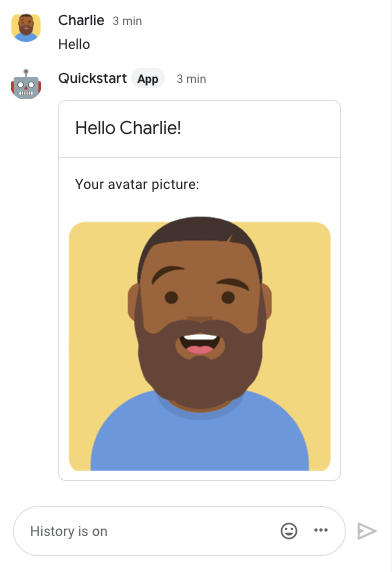
Ứng dụng Chat phản hồi bằng một thẻ có tên hiển thị và hình ảnh đại diện của người gửi

Để thêm người kiểm thử đáng tin cậy và tìm hiểu thêm về cách kiểm thử các tính năng tương tác, hãy xem bài viết Kiểm thử các tính năng tương tác cho ứng dụng Google Chat.

Khắc phục sự cố

Khi một ứng dụng hoặc thẻ Google Chat trả về lỗi, giao diện Chat sẽ hiển thị thông báo "Đã xảy ra lỗi." hoặc "Không thể xử lý yêu cầu của bạn". Đôi khi, giao diện người dùng Chat không hiển thị thông báo lỗi nào, nhưng ứng dụng hoặc thẻ Chat lại tạo ra kết quả không mong muốn; ví dụ: tin nhắn dạng thẻ có thể không xuất hiện.

Mặc dù thông báo lỗi có thể không xuất hiện trong giao diện người dùng Chat, nhưng bạn có thể xem các thông báo lỗi mang tính mô tả và dữ liệu nhật ký để giúp khắc phục lỗi khi tính năng ghi nhật ký lỗi cho ứng dụng Chat được bật. Để được trợ giúp xem, gỡ lỗi và khắc phục lỗi, hãy xem bài viết Khắc phục sự cố và sửa lỗi Google Chat.

Dọn dẹp

Để tránh bị tính phí vào tài khoản Google Cloud cho các tài nguyên được sử dụng trong hướng dẫn này, bạn nên xoá dự án trên đám mây.

  1. Trong Google API Console, hãy chuyển đến trang Manage resources (Quản lý tài nguyên). Nhấp vào trình đơn Menu > IAM & Admin > Manage Resources (IAM và Quản trị > Quản lý tài nguyên).

    Chuyển đến Resource Manager (Trình quản lý tài nguyên)

  2. Trong danh sách dự án, hãy chọn dự án mà bạn muốn xoá rồi nhấp vào biểu tượng Delete .
  3. Trong hộp thoại, hãy nhập mã dự án rồi nhấp vào tắt để xoá dự án.