
เลเยอร์การเปลี่ยนแปลงของน้ำจะบันทึกการเปลี่ยนแปลงระหว่างการเกิดน้ำ 3 ประเภท (ไม่ใช่น้ำ น้ำตามฤดูกาล และน้ำถาวร) พร้อมกับน้ำอีก 2 ประเภทเพิ่มเติมสำหรับน้ำชั่วคราว (น้ำถาวรชั่วคราวและน้ำตามฤดูกาลชั่วคราว)
ส่วนนี้ของบทแนะนำจะอธิบายสิ่งต่อไปนี้
- เพิ่มเลเยอร์ของแผนที่เพื่อแสดงภาพการเปลี่ยนแปลงของน้ำ
- สร้าง Reducer แบบจัดกลุ่มเพื่อรวมพื้นที่ของคลาสการเปลี่ยนผ่านแต่ละคลาสภายในขอบเขตที่สนใจที่ระบุ และ
- สร้างแผนภูมิที่สรุปพื้นที่ตามคลาสการเปลี่ยนผ่าน
การแสดงข้อมูลผ่านภาพขั้นพื้นฐาน
ในส่วนรายการเนื้อหาของสคริปต์ ให้เพิ่มคำสั่งต่อไปนี้ซึ่งจะสร้างออบเจ็กต์รูปภาพแบนด์เดียวชื่อ transition
ตัวแก้ไขโค้ด (JavaScript)
var transition = gsw.select('transition');
รูปภาพ GSW มีข้อมูลเมตาเกี่ยวกับหมายเลขและชื่อคลาสการเปลี่ยนภาพ และจานสีเริ่มต้นสำหรับการจัดสไตล์คลาสการเปลี่ยนภาพ เมื่อเพิ่มเลเยอร์การเปลี่ยนผ่านลงในแผนที่ ระบบจะใช้พารามิเตอร์การแสดงภาพเหล่านี้โดยอัตโนมัติ
ที่ด้านล่างของส่วนเลเยอร์ของแผนที่ในสคริปต์ ให้เพิ่มคำสั่งต่อไปนี้ซึ่งจะเพิ่มเลเยอร์ของแผนที่ใหม่ที่แสดงคลาสการเปลี่ยนผ่าน
ตัวแก้ไขโค้ด (JavaScript)
Map.setCenter(105.26, 11.2134, 9);     // Mekong River Basin, SouthEast Asia
Map.addLayer({
  eeObject: transition,
  name: 'Transition classes (1984-2015)',
});
เมื่อเรียกใช้สคริปต์ เลเยอร์การเปลี่ยนภาพจะแสดงขึ้น
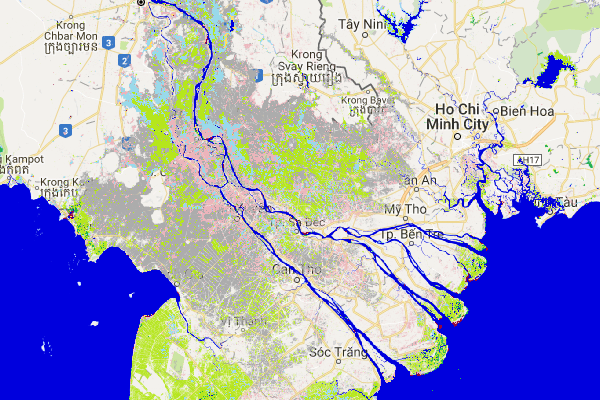
คีย์แผนที่สำหรับคลาสการเปลี่ยนผ่านมีดังนี้
| ค่า | สัญลักษณ์ | ป้ายกำกับ |
|---|---|---|
| 0 | ไม่ใช่น้ำ | |
| 1 | ถาวร | |
| 2 | ถาวรใหม่ | |
| 3 | สูญหายถาวร | |
| 4 | ฤดูกาล | |
| 5 | ตามฤดูกาลใหม่ | |
| 6 | สูญเสียตามฤดูกาล | |
| 7 | ตามฤดูกาลเป็นถาวร | |
| 8 | ถาวรเป็นตามฤดูกาล | |
| 9 | แอ่งน้ำชั่วคราวแบบถาวร | |
| 10 | แอ่งน้ำชั่วคราวตามฤดูกาล |
การสรุปพื้นที่ตามคลาสการเปลี่ยนผ่าน
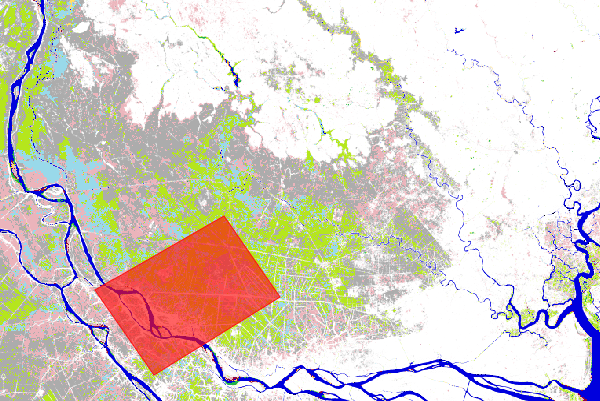
ในส่วนนี้ เราจะใช้เครื่องมือรูปหลายเหลี่ยมเรขาคณิตอีกครั้งเพื่อกำหนดขอบเขตที่สนใจ หากต้องการวิเคราะห์สถานที่ใหม่ คุณจะต้องเลือกและลบรูปหลายเหลี่ยมเดิมที่วาดไว้ก่อน เพื่อไม่ให้ได้รับผลลัพธ์จากพื้นที่ที่รวมกัน ดูข้อมูลเกี่ยวกับวิธีแก้ไขเรขาคณิตได้ที่ส่วน เครื่องมือเรขาคณิตของเอกสารตัวแก้ไขโค้ด
สำหรับตัวอย่างนี้ เราจะวาดรูปหลายเหลี่ยมใหม่ภายในสามเหลี่ยมปากแม่น้ำโขง
ในการคำนวณพื้นที่ที่ครอบคลุมโดยส่วนต่างๆ ของรูปภาพ เราจะเพิ่มแถบเพิ่มเติมลงในออบเจ็กต์รูปภาพการเปลี่ยนผ่านซึ่งระบุขนาดของแต่ละพิกเซลเป็นตารางเมตรโดยใช้เมธอด ee.Image.pixelArea
ตัวแก้ไขโค้ด (JavaScript)
var area_image_with_transition_class = ee.Image.pixelArea().addBands(transition);
ออบเจ็กต์รูปภาพที่ได้ (area_image_with_transition_class) เป็นรูปภาพ 2 แบนด์ โดยแบนด์แรกมีข้อมูลพื้นที่ในหน่วยตารางเมตร (สร้างโดยเมธอด
ee.Image.pixelArea
) และแบนด์ที่ 2 มีข้อมูลคลาสการเปลี่ยนผ่าน
จากนั้นเราจะสรุปการเปลี่ยนคลาสภายในขอบเขตที่สนใจ (roi) โดยใช้เมธอด
ee.Image.reduceRegion
และ
ตัวลดที่จัดกลุ่ม
ซึ่งทำหน้าที่สรุปพื้นที่ภายในคลาสการเปลี่ยนแต่ละคลาส ดังนี้
ตัวแก้ไขโค้ด (JavaScript)
var reduction_results = area_image_with_transition_class.reduceRegion({
  reducer: ee.Reducer.sum().group({
    groupField: 1,
    groupName: 'transition_class_value',
  }),
  geometry: roi,
  scale: 30,
  bestEffort: true,
});
print('reduction_results', reduction_results);
ตอนนี้เอาต์พุตของแท็บคอนโซลจะแสดง reduction_results โปรดทราบว่าคุณจะต้องขยายแผนผังลงไป 2-3 ระดับเพื่อดูข้อมูลสรุปของพื้นที่

แม้ว่าออบเจ็กต์ reduction_results จะมีข้อมูลเกี่ยวกับพื้นที่ที่ครอบคลุมโดยคลาสการเปลี่ยนแต่ละคลาส แต่ก็อ่านได้ไม่ง่ายนัก ในส่วนถัดไป เราจะทำให้ดูผลลัพธ์ได้ง่ายขึ้น
การสร้างแผนภูมิสรุป
ในส่วนนี้ เราจะสร้างแผนภูมิเพื่อสรุปผลลัพธ์ให้ดียิ่งขึ้น ในการเริ่มต้น เราจะดึงรายชื่อชั้นเรียนที่มีการเปลี่ยนผ่านพร้อมพื้นที่ต่างๆ ออกมาก่อน ดังนี้
ตัวแก้ไขโค้ด (JavaScript)
var roi_stats = ee.List(reduction_results.get('groups'));
ผลลัพธ์ของตัวลดที่จัดกลุ่ม (reduction_results) คือพจนานุกรมที่มีรายการพจนานุกรม
มีพจนานุกรม 1 รายการในรายการสำหรับคลาสการเปลี่ยนผ่านแต่ละคลาส
คำสั่งเหล่านี้ใช้เมธอด
ee.Dictionary.get
เพื่อดึงผลลัพธ์ของ Reducer ที่จัดกลุ่มจากพจนานุกรมนั้นและแคสต์ผลลัพธ์เป็นประเภทข้อมูล ee.List เพื่อให้เราเข้าถึงพจนานุกรมแต่ละรายการได้
หากต้องการใช้ ฟังก์ชันการสร้างแผนภูมิของตัวแก้ไขโค้ด เราจะสร้าง FeatureCollection ที่มีข้อมูลที่จำเป็น ในการดำเนินการนี้ เราจะสร้างพจนานุกรมการค้นหา 2 รายการและฟังก์ชันตัวช่วย 2 รายการก่อน โค้ดที่สร้างพจนานุกรมการค้นหาจะวางไว้ที่ด้านบนของส่วน "การคำนวณ" ได้ดังนี้
ตัวแก้ไขโค้ด (JavaScript)
//////////////////////////////////////////////////////////////
// Calculations
//////////////////////////////////////////////////////////////

// Create a dictionary for looking up names of transition classes.
var lookup_names = ee.Dictionary.fromLists(
    ee.List(gsw.get('transition_class_values')).map(numToString),
    gsw.get('transition_class_names')
);
// Create a dictionary for looking up colors of transition classes.
var lookup_palette = ee.Dictionary.fromLists(
    ee.List(gsw.get('transition_class_values')).map(numToString),
    gsw.get('transition_class_palette')
);
พจนานุกรม lookup_names จะเชื่อมโยงค่าคลาสการเปลี่ยนผ่านกับชื่อ ส่วนพจนานุกรม lookup_palette จะเชื่อมโยงค่าคลาสการเปลี่ยนผ่านกับคำจำกัดความของสี
คุณสามารถวางฟังก์ชันตัวช่วยทั้ง 2 รายการไว้ในส่วนโค้ดใหม่ที่ชื่อว่า "ฟังก์ชันตัวช่วย"
ตัวแก้ไขโค้ด (JavaScript)
//////////////////////////////////////////////////////////////
// Helper functions
//////////////////////////////////////////////////////////////

// Create a feature for a transition class that includes the area covered.
function createFeature(transition_class_stats) {
  transition_class_stats = ee.Dictionary(transition_class_stats);
  var class_number = transition_class_stats.get('transition_class_value');
  var result = {
      transition_class_number: class_number,
      transition_class_name: lookup_names.get(class_number),
      transition_class_palette: lookup_palette.get(class_number),
      area_m2: transition_class_stats.get('sum')
  };
  return ee.Feature(null, result);   // Creates a feature without a geometry.
}

// Create a JSON dictionary that defines piechart colors based on the
// transition class palette.
// https://developers.google.com/chart/interactive/docs/gallery/piechart
function createPieChartSliceDictionary(fc) {
  return ee.List(fc.aggregate_array("transition_class_palette"))
    .map(function(p) { return {'color': p}; }).getInfo();
}

// Convert a number to a string. Used for constructing dictionary key lists
// from computed number objects.
function numToString(num) {
  return ee.Number(num).format();
}
ฟังก์ชัน createFeature จะใช้พจนานุกรม (ซึ่งมีพื้นที่และคลาสการเปลี่ยนผ่านของน้ำ) และแสดงผลฟีเจอร์ที่เหมาะสำหรับการสร้างแผนภูมิ
ฟังก์ชัน createPieChartSliceDictionary จะสร้างรายการสีที่สอดคล้องกับคลาสการเปลี่ยนภาพ โดยใช้รูปแบบที่แผนภูมิวงกลมคาดหวัง
ถัดไป เราจะใช้ฟังก์ชัน createFeature กับพจนานุกรมแต่ละรายการในรายการ (roi_stats) โดยใช้ ee.List.map เพื่อใช้ฟังก์ชันตัวช่วยกับแต่ละองค์ประกอบของรายการ
ตัวแก้ไขโค้ด (JavaScript)
var transition_fc = ee.FeatureCollection(roi_stats.map(createFeature));
print('transition_fc', transition_fc);
เมื่อมี FeatureCollection ที่มีแอตทริบิวต์ที่ต้องการแสดงในแผนภูมิแล้ว เราสามารถสร้างออบเจ็กต์แผนภูมิและพิมพ์ลงในคอนโซลได้
ตัวแก้ไขโค้ด (JavaScript)
// Add a summary chart.
var transition_summary_chart = ui.Chart.feature.byFeature({
    features: transition_fc,
    xProperty: 'transition_class_name',
    yProperties: ['area_m2', 'transition_class_number']
  })
  .setChartType('PieChart')
  .setOptions({
    title: 'Summary of transition class areas',
    slices: createPieChartSliceDictionary(transition_fc),
    sliceVisibilityThreshold: 0  // Don't group small slices.
  });
print(transition_summary_chart);
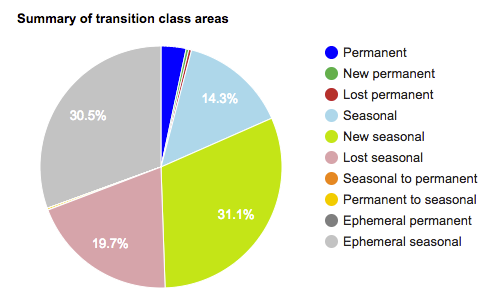
ตัวเลือก slices จะกำหนดสีให้ชิ้นส่วนแผนภูมิวงกลมเพื่อให้ใช้จานสีเริ่มต้นที่กำหนดไว้สำหรับคลาสการเปลี่ยนผ่าน (แสดงไว้ก่อนหน้านี้ในตารางคีย์แผนที่)
ตัวเลือก sliceVisibilityThreshold จะป้องกันไม่ให้มีการจัดกลุ่มส่วนเล็กๆ ไว้ด้วยกันในหมวดหมู่ "อื่นๆ"
แผนภูมิที่ได้ควรมีลักษณะคล้ายกับแผนภูมิที่แสดงในรูปที่ 13
สคริปต์สุดท้าย
สคริปต์ทั้งหมดสำหรับส่วนนี้มีดังนี้
ตัวแก้ไขโค้ด (JavaScript)
//////////////////////////////////////////////////////////////
// Asset List
//////////////////////////////////////////////////////////////

var gsw = ee.Image('JRC/GSW1_0/GlobalSurfaceWater');
var occurrence = gsw.select('occurrence');
var change = gsw.select("change_abs");
var transition = gsw.select('transition');
var roi = ee.Geometry.Polygon(
        [[[105.531921, 10.412183],
          [105.652770, 10.285193],
          [105.949401, 10.520218],
          [105.809326, 10.666006]]]);
//////////////////////////////////////////////////////////////
// Constants
//////////////////////////////////////////////////////////////

var VIS_OCCURRENCE = {
    min: 0,
    max: 100,
    palette: ['red', 'blue']
};
var VIS_CHANGE = {
    min: -50,
    max: 50,
    palette: ['red', 'black', 'limegreen']
};
var VIS_WATER_MASK = {
  palette: ['white', 'black']
};

//////////////////////////////////////////////////////////////
// Helper functions
//////////////////////////////////////////////////////////////

// Create a feature for a transition class that includes the area covered.
function createFeature(transition_class_stats) {
  transition_class_stats = ee.Dictionary(transition_class_stats);
  var class_number = transition_class_stats.get('transition_class_value');
  var result = {
      transition_class_number: class_number,
      transition_class_name: lookup_names.get(class_number),
      transition_class_palette: lookup_palette.get(class_number),
      area_m2: transition_class_stats.get('sum')
  };
  return ee.Feature(null, result);   // Creates a feature without a geometry.
}

// Create a JSON dictionary that defines piechart colors based on the
// transition class palette.
// https://developers.google.com/chart/interactive/docs/gallery/piechart
function createPieChartSliceDictionary(fc) {
  return ee.List(fc.aggregate_array("transition_class_palette"))
    .map(function(p) { return {'color': p}; }).getInfo();
}

// Convert a number to a string. Used for constructing dictionary key lists
// from computed number objects.
function numToString(num) {
  return ee.Number(num).format();
}

//////////////////////////////////////////////////////////////
// Calculations
//////////////////////////////////////////////////////////////

// Create a dictionary for looking up names of transition classes.
var lookup_names = ee.Dictionary.fromLists(
    ee.List(gsw.get('transition_class_values')).map(numToString),
    gsw.get('transition_class_names')
);
// Create a dictionary for looking up colors of transition classes.
var lookup_palette = ee.Dictionary.fromLists(
    ee.List(gsw.get('transition_class_values')).map(numToString),
    gsw.get('transition_class_palette')
);

// Create a water mask layer, and set the image mask so that non-water areas
// are transparent.
var water_mask = occurrence.gt(90).mask(1);

// Generate a histogram object and print it to the console tab.
var histogram = ui.Chart.image.histogram({
  image: change,
  region: roi,
  scale: 30,
  minBucketWidth: 10
});
histogram.setOptions({
  title: 'Histogram of surface water change intensity.'
});
print(histogram);

// Summarize transition classes in a region of interest.
var area_image_with_transition_class = ee.Image.pixelArea().addBands(transition);
var reduction_results = area_image_with_transition_class.reduceRegion({
  reducer: ee.Reducer.sum().group({
    groupField: 1,
    groupName: 'transition_class_value',
  }),
  geometry: roi,
  scale: 30,
  bestEffort: true,
});
print('reduction_results', reduction_results);

var roi_stats = ee.List(reduction_results.get('groups'));

var transition_fc = ee.FeatureCollection(roi_stats.map(createFeature));
print('transition_fc', transition_fc);

// Add a summary chart.
var transition_summary_chart = ui.Chart.feature.byFeature({
    features: transition_fc,
    xProperty: 'transition_class_name',
    yProperties: ['area_m2', 'transition_class_number']
  })
  .setChartType('PieChart')
  .setOptions({
    title: 'Summary of transition class areas',
    slices: createPieChartSliceDictionary(transition_fc),
    sliceVisibilityThreshold: 0  // Don't group small slices.
  });
print(transition_summary_chart);

//////////////////////////////////////////////////////////////
// Initialize Map Location
//////////////////////////////////////////////////////////////

// Uncomment one of the following statements to center the map on
// a particular location.
// Map.setCenter(-90.162, 29.8597, 10);   // New Orleans, USA
// Map.setCenter(-114.9774, 31.9254, 10); // Mouth of the Colorado River, Mexico
// Map.setCenter(-111.1871, 37.0963, 11); // Lake Powell, USA
// Map.setCenter(149.412, -35.0789, 11);  // Lake George, Australia
Map.setCenter(105.26, 11.2134, 9);     // Mekong River Basin, SouthEast Asia
// Map.setCenter(90.6743, 22.7382, 10);   // Meghna River, Bangladesh
// Map.setCenter(81.2714, 16.5079, 11);   // Godavari River Basin Irrigation Project, India
// Map.setCenter(14.7035, 52.0985, 12);   // River Oder, Germany & Poland
// Map.setCenter(-59.1696, -33.8111, 9);  // Buenos Aires, Argentina
// Map.setCenter(-74.4557, -8.4289, 11);  // Ucayali River, Peru

//////////////////////////////////////////////////////////////
// Map Layers
//////////////////////////////////////////////////////////////

Map.addLayer({
  eeObject: water_mask,
  visParams: VIS_WATER_MASK,
  name: '90% occurrence water mask',
  shown: false
});
Map.addLayer({
  eeObject: occurrence.updateMask(occurrence.divide(100)),
  name: "Water Occurrence (1984-2015)",
  visParams: VIS_OCCURRENCE,
  shown: false
});
Map.addLayer({
  eeObject: change,
  visParams: VIS_CHANGE,
  name: 'occurrence change intensity',
  shown: false
});
Map.addLayer({
  eeObject: transition,
  name: 'Transition classes (1984-2015)',
});
บทแนะนำเกี่ยวกับชุดข้อมูลน้ำบนพื้นผิวโลกจบลงเพียงเท่านี้ โปรดทราบว่าบทแนะนำนี้ได้แสดงวิธีทำงานกับชั้นข้อมูลเพียง 3 ชั้น (การเกิดขึ้น ความหนักของการเปลี่ยนแปลง และการเปลี่ยนผ่าน) ที่มีอยู่ในชุดข้อมูลน้ำบนพื้นผิวโลก คุณสามารถอ่านเกี่ยวกับชั้นข้อมูลอื่นๆ ที่มีอยู่ใน คู่มือผู้ใช้ข้อมูล (v2)
ขอให้สนุกกับการวิเคราะห์